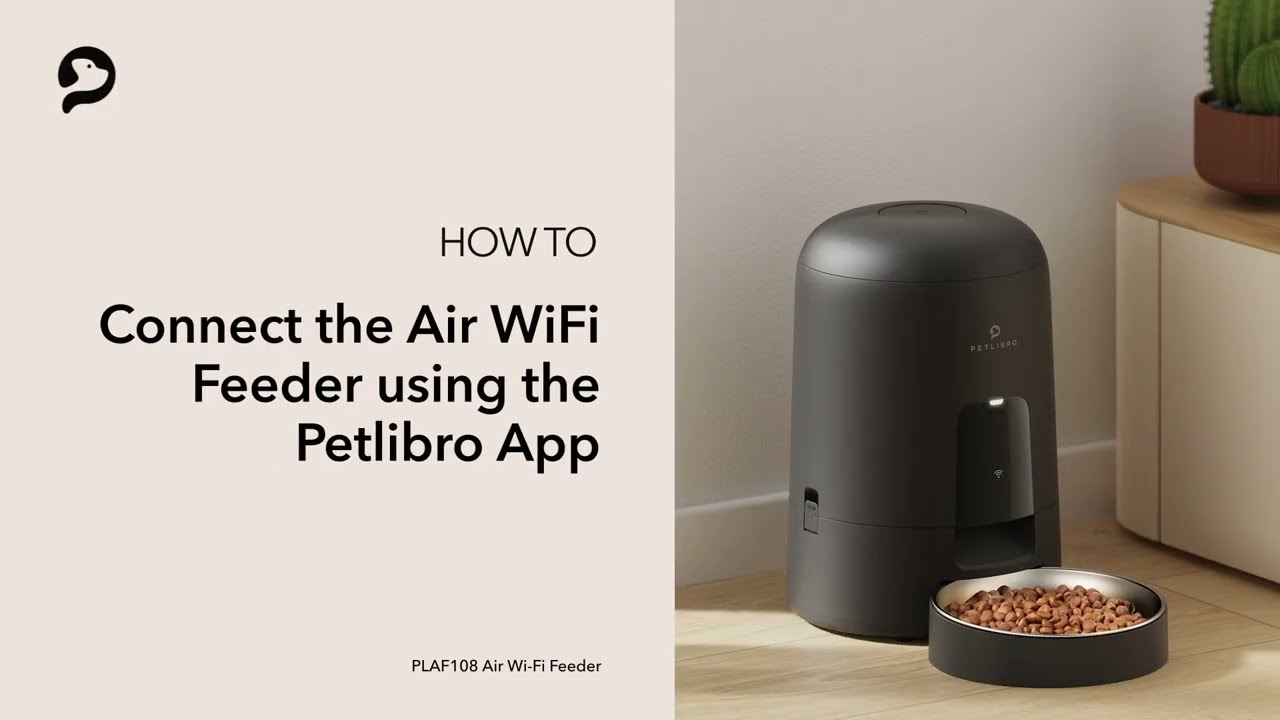
How To Connect Petlibro To WiFi: Easy Setup Guide
To connect Petlibro to Wi-Fi, install the PETLIBRO app, use a 2.4 GHz network, and follow setup prompts.
Learning how to connect Petlibro to Wi-Fi is simple once your feeder, phone, app, and router are ready. Most setup problems come from using a 5 GHz network, entering the wrong password, or placing the feeder too far from the router. This guide explains the full process in clear steps, along with fixes for common connection errors.
What you need before connecting Petlibro to Wi-Fi
Before learning how to connect Petlibro to Wi-Fi, gather the right tools. A few minutes of preparation can prevent most setup issues.
You will need:
• A compatible PETLIBRO feeder or water fountain
• The PETLIBRO app on your iPhone or Android phone
• Your home Wi-Fi name and password
• A stable 2.4 GHz Wi-Fi network
• The feeder connected to power
• Your phone near the feeder and router
Many smart pet devices use the 2.4 GHz Wi-Fi band because it reaches farther and works well with small connected appliances. Some newer PETLIBRO models may support both 2.4 GHz and 5 GHz networks, but the exact support depends on the model.
Check the label, manual, or official product page for your device. If your router combines both bands under one Wi-Fi name, your phone may switch between them during setup. In that case, temporarily connect your phone to the 2.4 GHz band if your router allows it.
I have found that setup goes more smoothly when the feeder is within a few feet of the router. Once the device connects, you can move it to its normal place and test the signal again.

How to connect Petlibro to Wi-Fi step by step
The basic process for how to connect Petlibro to Wi-Fi uses the PETLIBRO app. The button names may vary slightly by model or app version, but the process is usually similar.
1. Download the PETLIBRO app
Open the Apple App Store or Google Play Store. Search for the official PETLIBRO app, then install it.
Create an account or sign in. Use an email address that you check often, especially if your feeder sends alerts about food levels, feeding schedules, or errors.
2. Turn on the feeder
Plug the PETLIBRO feeder into a power outlet. Wait for the screen, indicator light, or voice prompt to show that the device is ready.
If the feeder was already connected to another network, reset its Wi-Fi settings. The reset method differs by model. Common options include holding the Wi-Fi, reset, or power buttons for several seconds.
Use the instructions that came with your feeder. Holding the wrong button may change another setting instead of starting Wi-Fi setup.
3. Open the device setup menu
Open the PETLIBRO app and tap the option to add a device. It may appear as a plus sign, “Add Device,” or “Add Pet Device.”
Choose your feeder or fountain from the product list. The app may ask for permission to use Bluetooth, your local network, or your location. Allow these permissions during setup because the app may need them to find the device.
4. Put the feeder into pairing mode
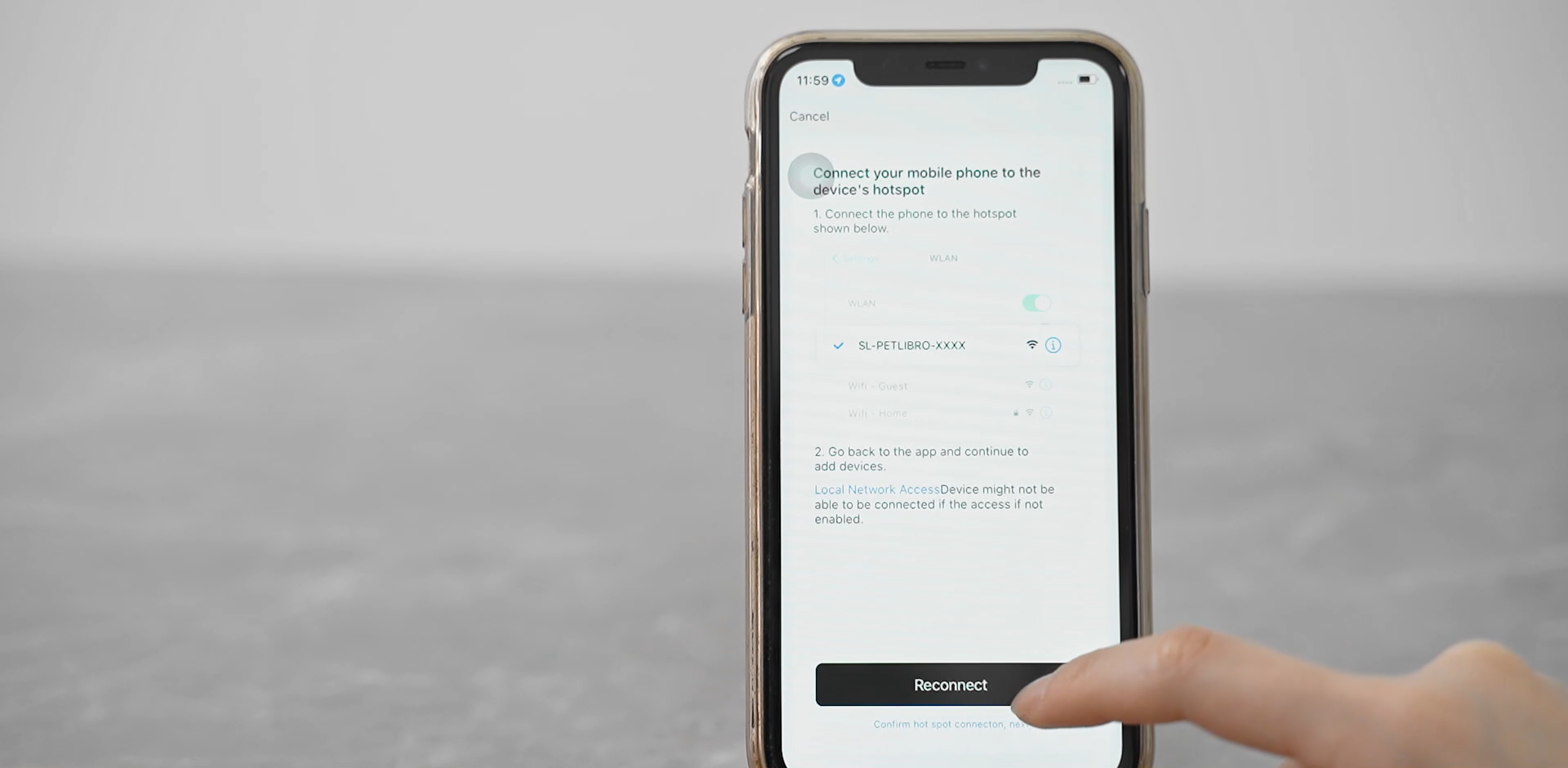
Follow the app instructions to place your PETLIBRO device in pairing mode. A flashing Wi-Fi symbol or blinking light usually means the feeder is ready.
Some models use Bluetooth to help the app find the feeder. Others ask you to connect to a temporary device network. Do not close the app while this process is running.
5. Select your Wi-Fi network
Choose your home Wi-Fi network from the list. Type the password carefully.
Wi-Fi passwords are case-sensitive. Check for common mistakes such as:
• A capital letter entered as lowercase
• A zero entered as the letter O
• An extra space at the end of the password
• A missing symbol
• Selecting a neighbor’s network with a similar name
For the best result, connect to a 2.4 GHz network unless your model clearly supports another band.
6. Wait for the connection
The app may take one to two minutes to send the Wi-Fi details to the feeder. Keep your phone close to the device and do not unplug the feeder.
A successful connection may show a solid light, a Wi-Fi icon, or a message in the app. The feeder should then appear on your PETLIBRO home screen.
7. Test the smart features
After learning how to connect Petlibro to Wi-Fi, test the main features before placing the feeder in its final location.
Try these actions:
• Create a test feeding schedule
• Dispense a small amount of food manually
• Check the food level in the app
• Test a voice recording if your model supports it
• Review notification settings
• Confirm that the device shows as online
This test is useful because a feeder can appear connected but still have a weak signal. Testing now is easier than troubleshooting after you leave the house.

How to connect Petlibro to Wi-Fi when setup fails
If how to connect Petlibro to Wi-Fi is not working, do not assume the feeder is defective. Most connection failures are caused by network settings, app permissions, or pairing mode.
Check the Wi-Fi band
The most common issue is a 5 GHz-only network. Many smart pet devices need 2.4 GHz Wi-Fi during setup.
Open your router settings or contact your internet provider. Ask whether the router broadcasts separate 2.4 GHz and 5 GHz networks. If it does, select the 2.4 GHz network in the PETLIBRO app.
Move the feeder closer
Walls, metal cabinets, refrigerators, and large appliances can weaken Wi-Fi signals. Move the feeder close to the router during setup.
After it connects, move it back slowly. If the device goes offline, the final location may need a Wi-Fi extender or a better router position.
Restart the setup
Close the PETLIBRO app completely. Unplug the feeder for about 30 seconds, plug it back in, and start setup again.
If that does not work, reset the feeder’s network settings. Follow the model-specific instructions rather than guessing which button to press.
Check app permissions
Your phone may block the app from finding nearby devices. Review the app permissions in your phone settings.
Look for access to:
• Bluetooth
• Local network
• Nearby devices
• Location, if requested by the operating system
These permissions do not mean the app can control unrelated devices. They help the phone discover and communicate with the feeder during setup.
Turn off mobile data temporarily
Some phones switch to mobile data when the Wi-Fi signal has no internet access. This can interrupt setup because the feeder may create a temporary local connection.
Temporarily turn off mobile data, VPN apps, and Wi-Fi assist features. Turn them back on after the feeder connects.
Use a simple network name and password
Some smart devices have trouble with unusual characters in Wi-Fi names or passwords. If possible, use a standard network name and password with common letters and numbers.
Do not weaken your home security permanently just to connect a feeder. If you change the password, use a strong one and update your router settings afterward.
Update the app and feeder
An outdated app can cause pairing errors. Update the PETLIBRO app through your phone’s app store.
If the app offers a firmware update after setup, install it while the feeder has a strong connection and stable power. Do not unplug the device during a firmware update.
How to connect Petlibro to Wi-Fi with a new router
When you replace your router or change your Wi-Fi password, the feeder usually cannot update itself. You must reconnect it to the new network.
The simplest method for how to connect Petlibro to Wi-Fi after a router change is:
- Open the PETLIBRO app.
- Select the existing feeder.
- Open device settings.
- Choose Wi-Fi or network settings.
- Select the option to change the network.
- Put the feeder into pairing mode.
- Enter the new Wi-Fi details.
- Wait for the online status to return.
If the app does not show a network-change option, remove the feeder from the app and add it again. You may need to reset the feeder’s Wi-Fi settings first.
A helpful tip is to use the same Wi-Fi name and password as your old router. Some smart devices reconnect automatically when the network details stay exactly the same. This is not guaranteed, but it can save time.
After reconnecting, check the feeding schedule. Schedules stored on the feeder may continue to work, but app features and notifications require an active connection.
How to connect Petlibro to Wi-Fi in a weak-signal area
A feeder may connect near the router but fail in a kitchen, basement, garage, or far bedroom. This usually means the Wi-Fi signal is weak at the feeder’s final location.
Try these improvements:
• Move the router to a central, open area
• Keep the router away from thick walls and metal objects
• Add a compatible Wi-Fi extender
• Use a mesh Wi-Fi system
• Place the feeder away from microwaves and large appliances
• Avoid hiding the feeder inside a closed cabinet
A mesh system can help large homes because it creates several points of coverage. However, the feeder still needs a stable 2.4 GHz signal if that is what the model requires.
In my own setup tests, moving a feeder only a few feet away from a refrigerator made a noticeable difference. The refrigerator acted like a barrier, and the feeder frequently showed as offline. Small changes in placement can matter more than expected.
Remember that Wi-Fi is helpful but not the only way the feeder works. Many PETLIBRO feeders can still follow stored feeding schedules when the internet is unavailable. Remote controls, alerts, and app updates may not work until the connection returns.

How to keep your Petlibro Wi-Fi connection stable
Knowing how to connect Petlibro to Wi-Fi is only the first step. Good placement and regular checks help keep the device online.
Use these habits:
• Keep the feeder powered by its recommended adapter
• Avoid frequent unplugging
• Keep the app updated
• Check for firmware updates
• Place the feeder where your pet cannot pull the cable
• Review the device status before traveling
• Test a manual feeding from the app once in a while
If your model has battery backup, remember that battery power may support basic feeding but not every smart feature. Read the product instructions to confirm how Wi-Fi behaves during a power outage.
Security also matters. Use a private home network instead of public Wi-Fi. Keep your router firmware updated and choose a strong password. Smart pet devices are part of your connected home, so basic network security is worth the effort.
It is also wise to set a backup feeding plan. A Wi-Fi feeder can reduce daily work, but no connected device is perfect. Ask a trusted person to check on your pet if you will be away for an extended time.
Common Petlibro Wi-Fi connection mistakes to avoid
Many failed setups come from small oversights. Avoiding these mistakes makes how to connect Petlibro to Wi-Fi faster and less frustrating.
• Using a 5 GHz-only network when the model needs 2.4 GHz
• Entering the Wi-Fi password from memory
• Moving the feeder too far from the router during setup
• Denying Bluetooth or local network permissions
• Closing the app before setup finishes
• Resetting the feeder without checking the manual
• Unplugging the device during a firmware update
• Assuming an online status means every feature works
• Forgetting to test notifications after setup
One mistake I often see is testing only the feeding button. Manual feeding may work even when notifications are blocked. Always check the full feature set that matters to you.
For example, if your goal is to monitor meals while traveling, test the app, alerts, schedule, and camera features if available. A connection that supports only one function may not meet your needs.
How to connect Petlibro to Wi-Fi securely
A secure setup protects both your home network and your pet’s routine. Use the official PETLIBRO app and download it only from a trusted app store.
Create a unique account password. Avoid using the same password for your email, banking, and smart-home accounts. If the app supports extra account security, enable it.
Keep your feeder’s software current. Updates may improve performance, fix bugs, or address security problems. Read update notes when available so you understand what is changing.
Do not share your PETLIBRO account with many people. If another family member needs access, use the app’s sharing or household features when available. This gives you better control than sharing one password.
PETLIBRO model features can differ. Camera access, feeding reports, voice recording, and offline behavior may not be the same across every device. Check the manual for your exact model before relying on a feature during travel.

Frequently asked questions about how to connect Petlibro to Wi-Fi
Does Petlibro need 2.4 GHz Wi-Fi?
Many PETLIBRO devices need a 2.4 GHz Wi-Fi network for setup and normal operation. Some newer models may support 5 GHz, so check your model’s instructions before connecting.
Why will my Petlibro not connect to Wi-Fi?
The most common causes are an incorrect password, weak signal, unsupported Wi-Fi band, or missing app permissions. Restart the feeder, use a nearby 2.4 GHz network, and repeat the setup process.
Can I connect Petlibro to Wi-Fi without the app?
Most smart PETLIBRO feeders require the official app for Wi-Fi setup. The app sends your network details to the feeder and manages features such as schedules, alerts, and remote feeding.
Will Petlibro work if Wi-Fi goes out?
Many models can continue stored feeding schedules without internet access, but app controls and notifications may stop. The exact offline features depend on the model and its power source.
How do I reconnect Petlibro after changing my Wi-Fi password?
Open the PETLIBRO app and use the device’s network settings to change the Wi-Fi details. If that option is unavailable, reset the feeder’s network settings and add the device again.
Can Petlibro connect to a guest Wi-Fi network?
It may work on a guest network if the network allows smart devices to communicate with your phone. Some guest networks block device-to-device access, so a standard private network is often more reliable.
Conclusion
Learning how to connect Petlibro to Wi-Fi usually takes only a few minutes. Use the official PETLIBRO app, connect to the correct Wi-Fi band, keep the feeder near the router during setup, and test every feature you plan to use.
If the connection fails, check the password, app permissions, router band, and signal strength before resetting the device. Once your feeder is online, keep its software updated and maintain a backup care plan for your pet.
Set up your PETLIBRO device today, test a feeding schedule, and explore the app’s alerts and monitoring tools so you can feel more confident when you are away.