How To Reset Petlibro Feeder: Easy Step-By-Step Guide
To reset a Petlibro feeder, hold its reset or Wi-Fi button until it beeps, then reconnect it in the app.
Learning how to reset Petlibro feeder models is usually simple, but the exact button and timing can vary. This guide explains the safe reset process, when to use a factory reset, how to reconnect Wi-Fi, and how to avoid losing feeding schedules or settings.
When should you reset a Petlibro feeder?
A reset can solve many common problems. It may help when the feeder will not connect to Wi-Fi, the Petlibro app cannot find the device, or the feeder keeps showing an offline status.
You may also need to reset the unit after changing your home router, moving the feeder to a new location, or giving it to another person. A reset clears the old network connection so the feeder can start fresh.
Consider resetting the feeder if:
• The feeder will not enter pairing mode
• The Petlibro app cannot discover the feeder
• The Wi-Fi password or router has changed
• The feeder repeatedly disconnects
• You want to remove the previous owner’s account
• The device behaves strangely after a firmware update
A reset is not always the first step. If the feeder still dispenses food, the screen works, and only the app has a problem, try closing and reopening the app first. Also check your phone’s Wi-Fi and Bluetooth settings.

Before you reset your Petlibro feeder
Preparation makes the reset process smoother. A factory reset may remove Wi-Fi details, schedules, and other stored settings. Write down your feeding plan before you begin.
Keep these items ready:
• The Petlibro feeder
• Your phone with the Petlibro app installed
• Your Wi-Fi name and password
• A stable power outlet
• The feeder’s model number
• The current feeding schedule
Most Petlibro smart feeders work best with a 2.4 GHz Wi-Fi network during setup. Some newer models may support 5 GHz networks, but compatibility depends on the model. If the app cannot find the feeder, connect your phone to a 2.4 GHz network when possible.
Do not reset the feeder while it is dispensing food. Wait until the motor stops. It is also wise to check that the food container is secure and that no kibble is blocking the dispensing wheel.
A useful lesson from hands-on troubleshooting is to check power before blaming the app. A loose cable or weak adapter can look like a software problem. Use the original power adapter when available, and make sure the cable fits firmly.
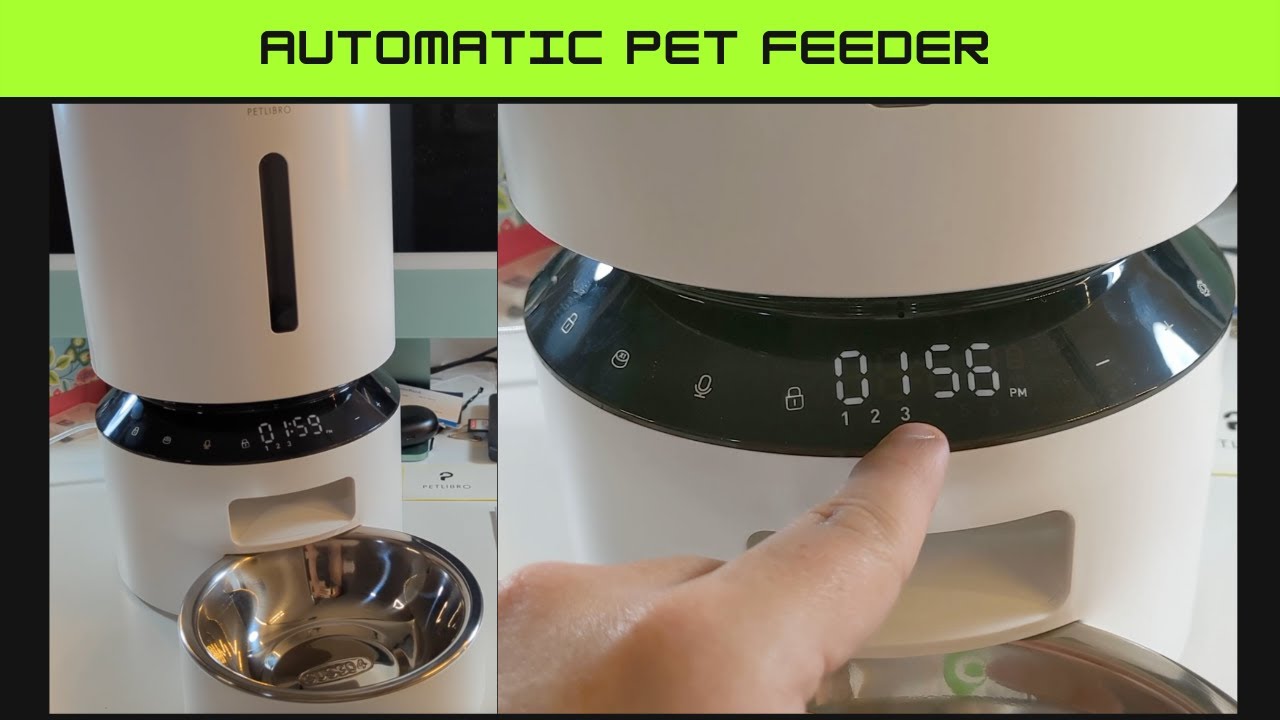
How to reset Petlibro feeder using the reset button
The standard method for how to reset Petlibro feeder devices is to press and hold the reset control. The button may be labeled Reset, Wi-Fi, or have a small wireless symbol.
Follow these steps:
-
Plug the feeder into a working outlet.
-
Find the reset or Wi-Fi button. It may be on the back, side, or control panel.
-
Press and hold the button for about five seconds.
-
Listen for a beep, voice prompt, or watch for a flashing Wi-Fi icon.
-
Release the button when the feeder confirms reset or pairing mode.
-
Open the Petlibro app and begin device setup.
The button timing can differ by model. Some feeders enter pairing mode after a short hold, while others need a longer press. If five seconds does not work, check the model-specific instructions in the Petlibro app or user manual.
Do not press random buttons for a long time. On some models, a short press may change a setting, while a long press may reset the network. The goal is to wait for the clear pairing signal.

How to reset Petlibro feeder through the Petlibro app
Some Petlibro models let you remove or reset the device from the app. This process may not erase every setting on the feeder, but it can remove the device from your account and prepare it for a new setup.
Try these steps:
-
Open the Petlibro app.
-
Sign in to the account linked to the feeder.
-
Select the feeder from the device list.
-
Open Device Settings.
-
Look for Remove Device, Delete Device, Reset Wi-Fi, or a similar option.
-
Confirm the action.
-
Return to the home screen and add the feeder again.
App menus can change after updates. The wording may also differ between Android and iPhone. If you do not see a reset option, use the physical reset or Wi-Fi button instead.
Removing a device from the app is not always the same as a full factory reset. Think of it like removing a house from a map. The account connection disappears, but the feeder may still remember some local settings until you reset the hardware.
How to reset Petlibro feeder and reconnect Wi-Fi
After you reset the feeder, reconnect it to your home network through the Petlibro app. Keep your phone close to the feeder during setup.
Use this general process:
-
Turn on the feeder and place it near your router.
-
Connect your phone to the correct Wi-Fi network.
-
Open the Petlibro app.
-
Tap Add Device or the plus symbol.
-
Choose the feeder category and model.
-
Follow the on-screen instructions.
-
Enter your Wi-Fi password carefully.
-
Wait for the feeder to beep or show a steady connection icon.
-
Give the feeder a name and save the setup.
If the connection fails, check these points:
• Use the correct Wi-Fi password.
• Turn off a VPN during setup.
• Keep mobile data from switching in place of Wi-Fi.
• Move the feeder closer to the router.
• Avoid guest Wi-Fi networks.
• Confirm that your phone has app permissions enabled.
• Restart the app before trying again.
A common mistake is using a network name that contains unusual characters or trying setup from a weak signal. For the first connection, place the feeder within a few feet of the router. You can move it later after the setup succeeds.

Model-specific tips for resetting Petlibro feeders
Petlibro sells several feeder families, and the reset process is not identical across all of them. Models may include Granary, Air, Polar, Capsule, and other smart or non-smart feeders.
Smart Wi-Fi feeders
Smart models usually have a reset or Wi-Fi button. Hold it until the device beeps or the Wi-Fi indicator flashes. Then add the feeder again in the app.
Feeders with a screen
Models with a display may show a menu option for Wi-Fi, network, or factory reset. Use the control buttons to select the option, then confirm it. Avoid assuming that the power button performs a reset.
Basic non-Wi-Fi feeders
A non-smart feeder may not have a network reset at all. If it has a display, look for a reset pinhole or a button combination in the manual. Unplugging the unit may only restart it and may not erase saved feeding times.
Feeders with a camera
Camera-equipped models may require app permissions for Wi-Fi, Bluetooth, microphone, or local network access. If the reset works but the camera remains offline, review those permissions in your phone settings.
The safest rule is simple: identify the exact model before following a button sequence. The model label is often on the bottom or rear of the feeder.

What happens after a Petlibro feeder reset?
A reset may erase the feeder’s wireless details and remove its link to your account. Depending on the model, it may also clear scheduled meals, portion sizes, alerts, and other preferences.
After resetting, check each important setting:
• Current time zone
• Meal times
• Portion size
• Number of daily meals
• Low-food alerts
• Food blockage alerts
• Voice recording or meal call settings
• Camera and motion settings
• Pet profile information
Run a small test portion before leaving the feeder alone. Place a bowl under the chute and confirm that the correct amount comes out. It is better to discover a wrong portion size while you are home than during a weekend trip.
Also check the hopper. A reset does not fix a jam, a worn motor, or damp food. If the feeder makes a grinding sound or drops very little food, inspect the chute and dispensing wheel.
Petlibro feeder reset does not work: troubleshooting steps
If learning how to reset Petlibro feeder devices has not solved the problem, work through these steps in order.
Confirm the power supply
Unplug the feeder for about 30 seconds. Plug it back into a reliable outlet and watch for the startup sound or display. Try the original adapter if you replaced it.
Hold the correct button
The reset control may be small and easy to miss. Check the back, side, bottom, and control panel. Hold the button firmly without pressing nearby controls.
Use the correct network
Many smart feeders need a 2.4 GHz network during setup. If your router combines 2.4 GHz and 5 GHz under one name, temporarily connect through a separate 2.4 GHz network if available.
Restart your phone
Close the Petlibro app fully, restart your phone, and open the app again. Check for app updates before pairing the feeder.
Improve the signal
Walls, metal appliances, and long distances can weaken Wi-Fi. Place the feeder near the router during setup. Once connected, move it back to its normal location and test it again.
Check permissions
On your phone, allow the Petlibro app to use Bluetooth, local network access, and location services when requested. These permissions can affect device discovery.
Update the app
An old app version may not work well with newer firmware. Update the app from the official app store, then try the reset and pairing process again.
Contact support
If the feeder will not power on, the button does not respond, or the motor is damaged, contact Petlibro support. Have the model name, serial number, purchase details, and a short video ready. This helps support staff identify whether the issue is network related or mechanical.
How to avoid problems after resetting
Resetting should be a clean start, not a repeated daily fix. Once the feeder reconnects, make a short checklist for future use.
Set the correct time first. Then program meals, save portion sizes, and test one scheduled feeding. If the feeder has an app alert feature, enable notifications and confirm that your phone receives them.
Use dry food that fits the feeder’s size limits. Very large, sticky, oily, or damp pieces may cause blockages. Clean the food chute and bowl on the schedule recommended in the manual.
Keep the feeder on a flat surface. If it tilts, food may not move evenly through the dispensing path. Also keep the unit away from water bowls that could splash onto the motor or power connection.
A feeder should support your pet’s routine, but it should not replace daily checks. Automatic devices can lose power, disconnect from Wi-Fi, or jam. For pets with medical diets or strict meal needs, verify each feeding and keep a backup plan.
Frequently Asked Questions About How to Reset Petlibro Feeder
How do I reset my Petlibro feeder if it is offline?
Press and hold the feeder’s Reset or Wi-Fi button until you hear a beep or see a flashing Wi-Fi symbol. Then remove or re-add the feeder in the Petlibro app and connect it to your home network.
Will resetting a Petlibro feeder delete the feeding schedule?
A network reset may only remove Wi-Fi information, but a factory reset can erase feeding schedules and other settings. Record your schedule before resetting, then check every setting after reconnecting.
Why can’t the Petlibro app find my feeder after a reset?
Make sure the feeder is in pairing mode and your phone is connected to a compatible Wi-Fi network. Keep the phone close to the feeder, enable app permissions, and try restarting both the app and the feeder.
How long should I hold the Petlibro reset button?
Many Petlibro models respond to a hold of about five seconds, but the correct time can vary. Release the button after the beep, voice prompt, or flashing Wi-Fi indicator confirms pairing or reset mode.
Does unplugging a Petlibro feeder reset it?
Unplugging usually restarts the feeder but does not erase stored Wi-Fi or meal settings. Use the labeled Reset or Wi-Fi control when you need to clear the network connection.
Can I reset a Petlibro feeder without the app?
Yes, many smart models can enter reset or pairing mode with the physical Reset or Wi-Fi button. You still need the app to complete setup and connect the feeder to your network.
Why is my Petlibro feeder still not dispensing food after a reset?
A reset does not remove food jams or repair a motor. Check the chute, dispensing wheel, hopper, food size, power adapter, and meal schedule before contacting support.
Conclusion
The best way to reset Petlibro feeder devices is to hold the correct Reset or Wi-Fi button until the feeder confirms pairing mode, then reconnect it through the Petlibro app. Always check the exact model because button locations, reset times, and menu options can differ.
Save your feeding schedule before a factory reset, use a compatible Wi-Fi network, and test a small portion after setup. These simple steps can prevent missed meals and help your pet return to a steady routine.
Try the reset method that matches your model, then review the official manual if the feeder still will not connect. Share your model and results in the comments so other Petlibro users can find the right solution.