Petlibro Feeder Camera Not Working: Easy Fixes
A Petlibro feeder camera not working usually needs a power, Wi-Fi, app, or privacy setting reset.
A Petlibro smart feeder can miss video for several simple reasons, from weak 2.4 GHz Wi-Fi to a blocked lens or outdated app. This guide explains how to find the cause, restore the camera, and avoid common setup mistakes that can interrupt feeding checks.
Why Is My Petlibro Feeder Camera Not Working?
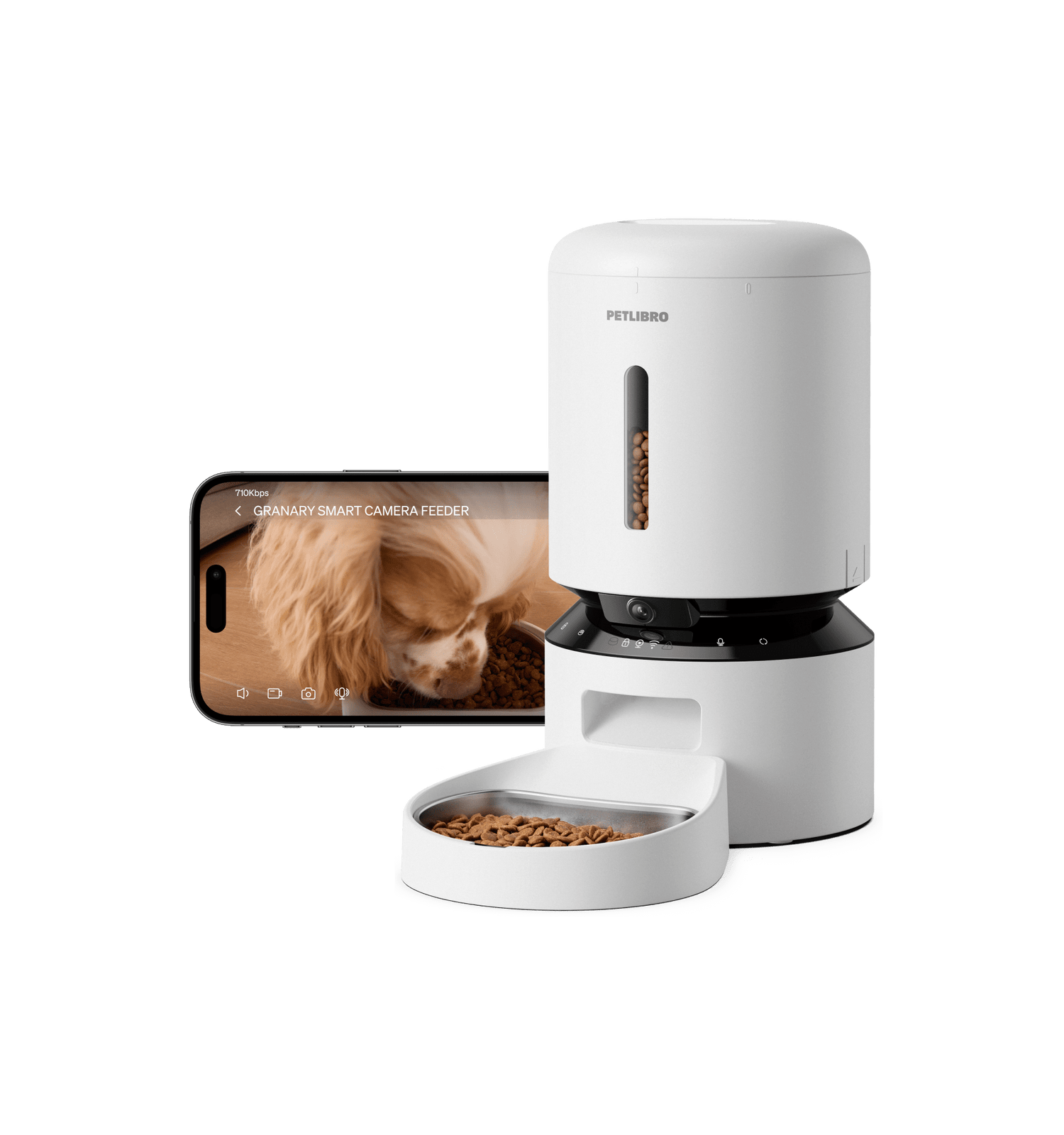
When a Petlibro feeder camera not working issue appears, the camera may show a black screen, stay offline, fail to load video, or stop sending alerts. The feeder may still release food even when the camera connection fails.
This happens because the camera and feeding motor use different systems. A working feeding schedule does not always mean the camera has a stable internet connection. Think of the feeder as a small appliance with two paths: one for food and one for video.
The most common causes include:
• The feeder has lost power or has a loose cable.
• The camera cannot connect to the correct Wi-Fi band.
• The Petlibro app needs an update or fresh login.
• The lens is covered by dust, a sticker, or a bad angle.
• The feeder is too far from the router.
• The camera has not completed setup.
• A firmware update failed or is still pending.
• The privacy mode or camera permission is blocking video.

Check the Feeder’s Power and Camera Light
Start with the basics. Confirm that the power adapter is firmly connected to both the outlet and the feeder. If your model uses a removable cable, check both ends for bending, damage, or a loose fit.
Look at the status light. The color and pattern can differ by Petlibro model, so use the guide for your exact device. A dark light may point to a power problem, while a flashing light often means the feeder is trying to connect.
Try these steps:
-
Unplug the feeder from the wall.
-
Wait at least 30 seconds.
-
Plug it directly into a wall outlet.
-
Wait two to five minutes for startup.
-
Open the Petlibro app and check the camera again.
Avoid testing with a weak power strip or a USB hub. Some hubs do not provide steady power, and a camera can fail before the feeding motor does.
In my troubleshooting experience, users often replace the feeder or reset the router before checking the cable. That can waste time. A loose connector is easy to miss, especially when the feeder still dispenses food normally.
Test Your Wi-Fi Connection
A Petlibro feeder camera not working problem often comes from Wi-Fi. Many smart pet devices work best with a 2.4 GHz network. Some models may support other network types, but compatibility depends on the specific Petlibro product.
Check whether your phone is connected to the same home network used during setup. Then move the feeder closer to the router for a test. If the camera works near the router but fails in its normal location, distance or signal interference is likely the cause.
Keep the feeder away from:
• Thick concrete walls.
• Large metal appliances.
• Microwaves.
• Fish tanks.
• Crowded shelves with many wireless devices.
• Enclosed cabinets.
Also check your router settings. A hidden network, captive portal, enterprise network, or extra security filter may prevent setup. Pet devices usually need a normal home Wi-Fi network with a clear password.
If your router combines 2.4 GHz and 5 GHz under one name, try temporarily separating the network names. Connect the feeder to the 2.4 GHz network if your model requires it.

Restart the Router and Petlibro App
A simple restart can clear a temporary connection error. Turn off the router, wait about one minute, and turn it back on. Give it several minutes to restore internet access before testing the feeder.
Next, close the Petlibro app completely. Do not leave it running in the background. Reopen it and check the camera feed.
You can also try:
• Signing out and signing back in.
• Updating the Petlibro app from the official app store.
• Restarting your phone.
• Turning off a virtual private network.
• Disabling battery saver for the Petlibro app.
• Allowing local network, camera, microphone, and notification permissions when requested.
A VPN or strict phone security setting can sometimes interfere with local device discovery. This is especially common during the first setup, when the app must find the feeder on your network.
If the app says the feeder is offline, do not repeatedly tap the live-view button. Wait for the device status to refresh. Repeated requests can make a slow connection appear worse.
Inspect the Camera Lens and Privacy Settings
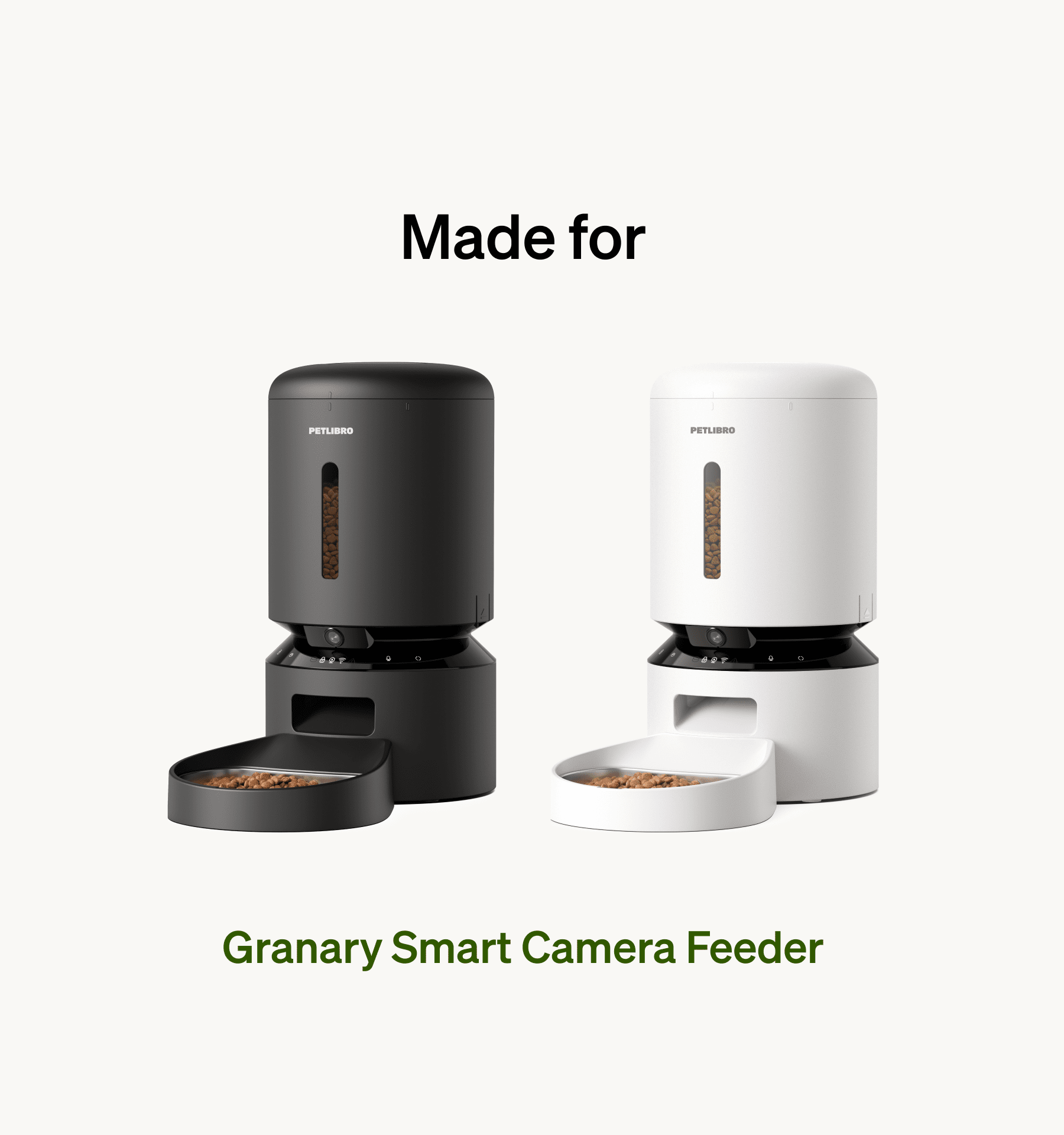
If the app opens but shows a dark, blurry, or frozen image, inspect the camera itself. Remove any protective film left on the lens. Wipe the lens gently with a clean microfiber cloth.
Check the camera angle as well. A feeder placed against a wall may show a nearly black image. Bright light behind your pet can also make the video look dark. Move the feeder so the camera faces the feeding area without pointing directly at a window.
Review privacy controls in the app. Some Petlibro models include privacy functions that can stop or limit camera viewing. If privacy mode is active, the feeder may appear connected while video remains unavailable.
A camera feed can also look frozen because of cached data. Close the app, reopen it, and test the feed on another phone if possible. If another phone shows the same problem, the issue is more likely with the feeder or network.

Reconnect the Feeder to Wi-Fi
If the Petlibro feeder camera not working message continues, reconnect the device to Wi-Fi. Before starting, write down your network name and password. Use the exact capitalization, since Wi-Fi passwords are case-sensitive.
Place your phone near the feeder and follow the pairing steps in the Petlibro app. Keep the app open during setup. Do not switch to another screen unless the app tells you to do so.
A reliable reconnection process usually looks like this:
-
Open the Petlibro app.
-
Select the feeder.
-
Open device or network settings.
-
Choose the Wi-Fi setup option.
-
Follow the reset or pairing instructions for your model.
-
Select the correct home network.
-
Enter the Wi-Fi password carefully.
-
Wait until the app confirms setup.
Do not unplug the feeder during pairing. If the setup fails, restart the phone and router before trying again. Also make sure the phone has Bluetooth and location access if the app requests them for device discovery.
Some models use a reset button or button combination. The exact method can vary, so avoid holding random buttons for a long time. Use the instructions for your model to prevent an unnecessary full reset.

Update the App and Feeder Firmware
Outdated software can cause a Petlibro feeder camera not working error. App updates may fix login problems, video loading errors, or compatibility issues with newer phone operating systems.
Open your phone’s app store and check for an available Petlibro update. Then open the feeder’s device settings and look for a firmware update. Keep the feeder powered during the update.
Follow these safety tips:
• Use a stable Wi-Fi connection.
• Keep the feeder close to the router.
• Do not close the app during the update.
• Do not unplug the feeder.
• Wait until the update message disappears.
A firmware update may take several minutes. If the device appears quiet during that time, do not assume it has failed immediately. Give it time to finish and restart.
Software support can vary by model and region. If the app does not show a firmware option, that may be normal for your device. Check the model number before applying any troubleshooting instructions from another Petlibro feeder.
Reset the Petlibro Feeder
A reset can solve a stubborn Petlibro feeder camera not working issue, but use it as a later step. A reset may erase Wi-Fi details, schedules, or device settings. Save important feeding times before starting.
First, try a soft restart by unplugging the feeder and reconnecting it. If that does not work, use the factory reset method listed for your exact model.
After a factory reset:
-
Remove the feeder from the app if required.
-
Restart your router.
-
Reinstall or update the Petlibro app.
-
Add the feeder as a new device.
-
Connect it to the correct Wi-Fi network.
-
Test live video before moving the feeder.
-
Recreate feeding schedules and alerts.
This step is similar to giving the feeder a clean slate. It can remove a damaged connection record, but it cannot repair physical damage or a failed camera module.
What to Do When the Camera Is Offline but Feeding Works
A feeder may continue to follow stored feeding schedules while the camera is offline. This is useful, but it creates a safety concern because you cannot confirm that your pet ate, that the food bowl is clear, or that the feeder is operating as expected.
Until the camera works again, check the feeder in person when possible. Confirm that:
• Food is dispensing at the correct times.
• The bowl is not blocked.
• Your pet can reach the food.
• The hopper is not empty.
• The feeder has steady power.
• The food is fresh and dry.
Do not depend only on the app for a pet’s care. Smart feeders are helpful tools, but they are not a replacement for regular checks. A camera outage should not become a feeding outage.
If you are away from home, ask a trusted person to inspect the feeder. This matters most for pets that need timed meals, medication mixed with food, or close monitoring.

Common Mistakes That Cause Camera Problems
Many setup failures come from small mistakes rather than defective hardware. Avoid connecting the feeder while your phone is using cellular data. Your phone should usually be on the same home Wi-Fi network during setup.
Another common mistake is entering the wrong Wi-Fi password. Copying a password from a password manager can help, but check for extra spaces. Also confirm that you selected the right network if nearby homes have similar names.
Other mistakes include:
• Placing the feeder too far from the router.
• Covering the camera with a decorative item.
• Ignoring app permission requests.
• Using a guest Wi-Fi network that blocks smart devices.
• Resetting the feeder before recording its feeding schedule.
• Testing the camera through a weak mobile signal.
• Assuming the camera supports every Wi-Fi band.
The best approach is to change one thing at a time. If you change the router, app, password, and feeder position at once, you may not know which step solved the problem.
When to Contact Petlibro Support
Contact Petlibro support if the Petlibro feeder camera not working problem remains after power, Wi-Fi, app, and reset checks. Support can review model-specific indicators and determine whether the device needs replacement.
Before contacting support, gather useful details:
• The exact feeder model.
• Your phone type and operating system.
• The Petlibro app version.
• The feeder’s status light color.
• The date the problem began.
• Whether feeding still works.
• What reset steps you tried.
• A short video or photo of the issue.
Do not open the feeder housing or attempt electrical repairs. Opening the device can create a safety risk and may affect warranty coverage. If the power cord is damaged, stop using it and replace it through an approved channel.
A hardware problem is more likely when the camera stays black on multiple phones, the device will not enter pairing mode, or the feeder repeatedly loses power. In that case, more app troubleshooting may not help.
How to Prevent Future Camera Failures
Once you fix the Petlibro feeder camera not working problem, take a few steps to keep the connection stable. Place the feeder where it has a strong signal and a clear view of the food area.
Clean the lens during normal feeder cleaning. Keep the power cable dry and away from areas where your pet can chew it. Check the app every few days instead of waiting until you travel.
A simple maintenance routine can include:
• Test live video once a week.
• Confirm the feeding schedule after app updates.
• Check the food level and bowl.
• Keep the feeder firmware current.
• Restart the router if smart devices become slow.
• Record the model number and setup details.
I also recommend testing the feeder before every trip. Do not wait until you are at the airport to learn that the camera cannot connect. A five-minute test can prevent a stressful call to a neighbor.
Remember that internet outages, router changes, and power cuts can affect any connected pet device. Keep a backup feeding plan for storms, travel, and service interruptions.
Frequently Asked Questions About Petlibro Feeder Camera Not Working
Why is my Petlibro feeder camera showing a black screen?
A black screen may result from privacy mode, a covered lens, poor lighting, an app error, or a failed camera connection. Restart the feeder and app, inspect the lens, and test the device on another phone.
Why does my Petlibro feeder work but the camera is offline?
The feeding schedule may be stored locally, while live video needs an active Wi-Fi and app connection. Check the router, reconnect the feeder to Wi-Fi, and confirm that the app has the required permissions.
Does Petlibro feeder camera need 2.4 GHz Wi-Fi?
Many smart pet feeders use or prefer a 2.4 GHz network, but support depends on the model. Check your model’s instructions and try a separate 2.4 GHz network if combined Wi-Fi setup fails.
How do I reset a Petlibro feeder camera?
The reset method varies by model and may erase network settings and feeding schedules. Follow the reset instructions for your exact feeder in the Petlibro app or product guide.
Why can’t the Petlibro app find my feeder?
The phone and feeder may be on different networks, or the app may lack Bluetooth, location, or local network access. Move the phone near the feeder, enable requested permissions, and restart the router before pairing again.
Should I replace my Petlibro feeder if the camera stops working?
Not immediately. Try power checks, Wi-Fi troubleshooting, app updates, lens inspection, and a model-specific reset first; contact Petlibro support if the camera remains offline on several phones.
Conclusion
A Petlibro feeder camera not working problem usually comes from power, Wi-Fi, app settings, privacy controls, or outdated software. Start with simple checks, test the feeder close to the router, and change one setting at a time.
Keep checking the actual food supply and feeding schedule while the camera is offline. If the issue continues after a careful reset, contact Petlibro support with your model and error details. Save this guide for future setup problems, and share your experience or solution in the comments.