Petlibro Dog Camera Troubleshooting: Easy Fixes That Work
Most Petlibro dog camera problems come from Wi-Fi, power, app, or setup issues—not a broken camera.
Petlibro dog camera troubleshooting is often simple when you check the problem in the right order. A weak network, blocked app permission, outdated firmware, or poor power connection can make a healthy camera seem faulty. This guide explains how to find the cause, fix common errors, and restore a stable view of your dog.
Start with the basic Petlibro dog camera troubleshooting checks
Before changing advanced settings, take a few minutes to inspect the basics. Many camera problems begin with a loose cable, a disabled phone permission, or a router that needs a restart.
Use this quick check:
- Confirm that the camera has power.
- Check that the status light matches the setup guide for your model.
- Open the PETLIBRO app and make sure you are signed in to the correct account.
- Check whether your phone has a strong internet connection.
- Move your phone close to the home router.
- Restart the camera, router, and app.
- Make sure the camera lens is clean and uncovered.
If the camera works near the router but fails in its normal location, the issue is likely signal strength. If it does not turn on at all, focus on power before changing Wi-Fi settings.
A useful rule is to change one thing at a time. If you reset the router, reinstall the app, and move the camera at once, you may not know which step solved the problem.

Petlibro dog camera will not turn on
A camera that shows no light or sound may have a power problem. Start with the wall outlet, then inspect the adapter and USB cable for damage. Test the outlet with another device, such as a phone charger.
Try these steps:
- Unplug the camera for about 30 seconds.
- Plug it into a known working wall outlet.
- Push the power cable firmly into the camera.
- Try the original power adapter supplied with the device.
- Check the cable for cuts, bent ends, or loose parts.
- Avoid testing through a weak USB hub or damaged extension cord.
Some Petlibro cameras use a separate power adapter, while others may use a USB power cable. The exact light pattern and reset method can differ by model, so use the manual for your device.
Do not use a random adapter just because its plug fits. The wrong voltage or current can cause unstable operation or damage. If the camera becomes hot, smells unusual, or has a damaged cable, unplug it and contact Petlibro support.
In practical Petlibro dog camera troubleshooting, power faults are easy to overlook. I have seen people spend time changing router settings when the real cause was a loose cable behind a shelf. Check the physical connection first.
Petlibro dog camera will not connect to Wi-Fi
Wi-Fi connection failure is one of the most common Petlibro dog camera troubleshooting issues. During setup, the camera must communicate with the app and your home network. If one part of that chain fails, pairing may stop.
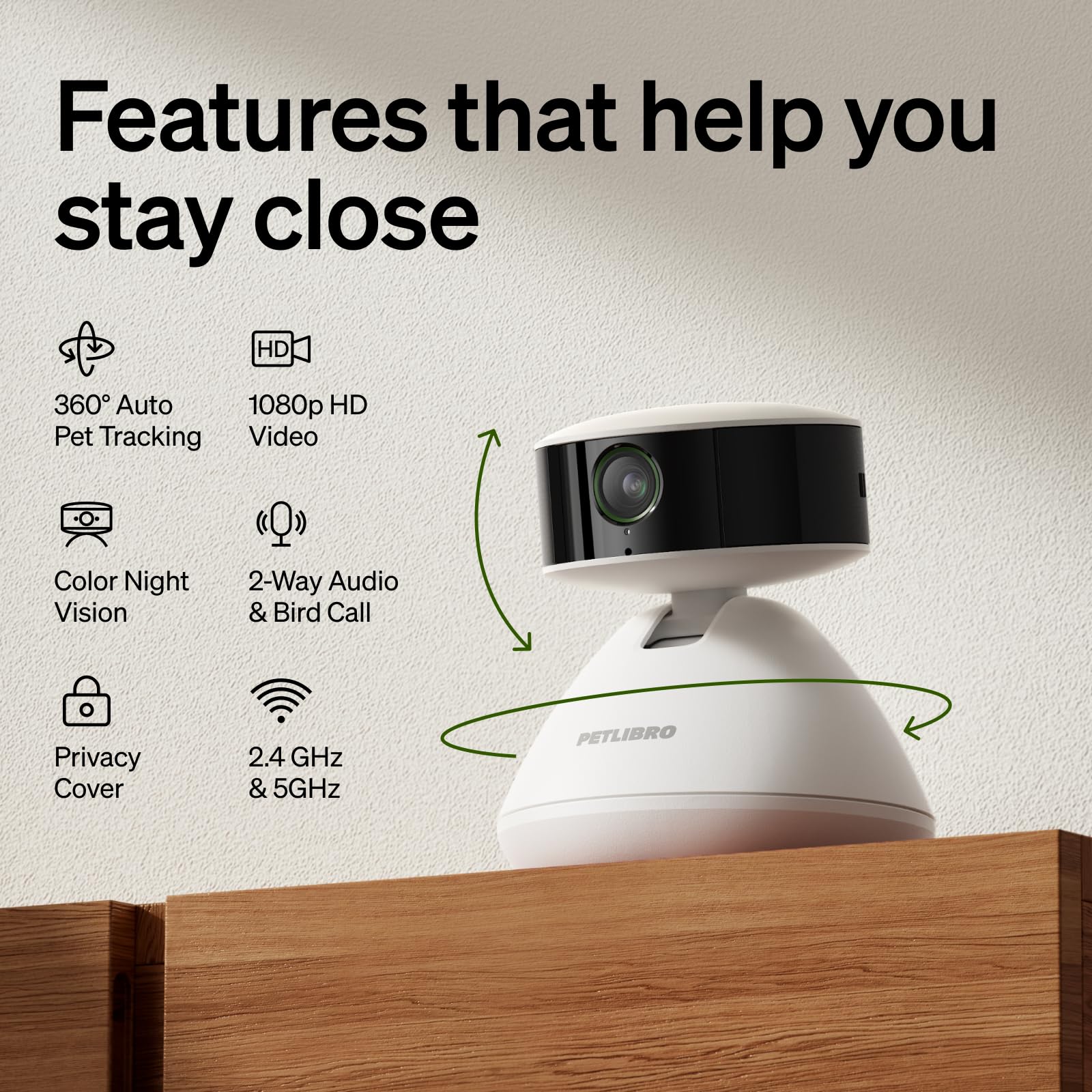
First, check your network band. Many smart home devices work best with a 2.4 GHz Wi-Fi network during setup. Some newer devices support both 2.4 GHz and 5 GHz, but support depends on the exact Petlibro model.
Try the following:
- Place the camera within a few feet of the router.
- Turn off mobile data on your phone during setup if the app struggles to find the camera.
- Connect your phone to the home Wi-Fi network you want the camera to use.
- Enter the Wi-Fi password carefully.
- Avoid spaces before or after the password.
- Restart the router and wait until the internet is stable.
- Run the setup again in the PETLIBRO app.
A mesh network can also cause trouble. Some mesh systems combine both Wi-Fi bands under one network name. If setup fails, temporarily create a separate 2.4 GHz network or ask your internet provider how to separate the bands.
Keep the camera away from thick concrete walls, metal cabinets, microwaves, and large appliances. Wi-Fi is like a conversation: distance and barriers make it harder for the camera and router to hear each other.
Petlibro camera keeps disconnecting
A camera that connects and then drops offline often has an unstable signal rather than a bad camera. Watch for a pattern. Does it disconnect at a certain time, when someone uses the microwave, or when other family members stream video?
Common causes include:
- The camera is too far from the router.
- The router is overloaded.
- The Wi-Fi signal changes between bands.
- The camera software needs an update.
- The internet service has brief outages.
- The camera is behind a wall or large appliance.
- The power connection is loose.
Move the camera closer to the router for a test. If the connection becomes stable, improve coverage with a mesh node or Wi-Fi extender. Place the extender halfway between the router and camera, not in the weak area itself.
Restarting the router may help for a short time, but repeated drops need a deeper fix. Check the router’s device list and remove old devices if the network has reached its limit. Also, install firmware updates through the official PETLIBRO app when they are offered.
For accurate Petlibro dog camera troubleshooting, test the camera for at least 15 to 30 minutes after each change. A short test can make an unstable connection look fixed.

Petlibro camera is offline in the app
The PETLIBRO app may show the camera as offline even when the camera has power. This can happen after a router change, power outage, Wi-Fi password update, or temporary cloud service problem.
Follow this order:
- Close the app completely.
- Reopen it and refresh the device list.
- Check your phone’s internet connection.
- Confirm that the camera still has power.
- Restart the camera.
- Restart the router.
- Check whether other apps can reach the internet.
- Update the PETLIBRO app if an update is available.
If you recently changed your Wi-Fi name or password, the camera may still be trying to use the old network. In that case, remove the device from the app only if the app instructions tell you to do so, then complete setup again.
Do not repeatedly delete and add the camera without checking the cause. Repeated resets can waste time and may remove settings that you still need.
Cloud-based cameras also depend on remote services. If your internet works but the app cannot load the camera, check Petlibro’s official support channels for a service issue. A temporary server problem cannot be fixed through home Wi-Fi settings.

Petlibro camera setup fails or QR code will not scan
Some Petlibro cameras use a QR code shown on your phone during setup. The camera reads that code through its lens. Bright reflections, a dirty lens, or incorrect screen brightness can stop the scan.
Improve the scan by following these tips:
- Turn your phone brightness up.
- Remove a cracked or dark screen protector.
- Hold the phone still.
- Keep the phone at the distance shown in the app.
- Clean the camera lens with a soft, dry cloth.
- Avoid strong light behind the phone.
- Make sure the QR code is fully visible.
- Do not zoom in unless the app instructs you to do so.
If the camera gives a sound or voice prompt but does not complete setup, the Wi-Fi details may be wrong. Recheck the network name and password. Remember that a small typing error can stop the entire process.
When Petlibro dog camera troubleshooting involves setup, patience matters. Wait for each app screen to finish before tapping back or restarting. Moving too quickly can interrupt pairing.

Petlibro camera has no video or shows a black screen
A black screen can result from a weak connection, an app error, a blocked lens, or a device permission problem. First, check whether the camera produces live video on another phone. This test helps separate a phone issue from a camera issue.
Try these solutions:
- Close and reopen the PETLIBRO app.
- Switch between Wi-Fi and mobile data to compare performance.
- Clean the lens.
- Remove any protective film that covers the lens.
- Update the app.
- Restart the phone.
- Restart the camera.
- Test the camera at a lower viewing quality if the app provides that option.
If the audio works but the picture does not, inspect the lens and app display. If neither video nor audio works, focus on power, network access, and camera status.
Phone permissions may also matter. On your phone, allow the PETLIBRO app to use the permissions needed for camera setup, local network access, notifications, microphone use, and storage. Permission names vary between iPhone and Android devices.
Night vision can look dark when the camera faces a window or bright lamp. Test the camera in a dim room with a clear view of your dog. Infrared night vision may also reflect from glass, shiny walls, or close objects.

Petlibro camera audio, microphone, or two-way talk is not working
If you cannot hear your dog, first raise the phone volume and check the camera’s speaker and microphone openings. Make sure your phone is not connected to Bluetooth headphones that are sending the sound elsewhere.
For two-way audio problems:
- Check microphone permission for the PETLIBRO app.
- Tap the correct talk or microphone button.
- Speak close enough for the camera to hear you.
- Check whether your phone is muted.
- Reduce background noise near the camera.
- Test with a different phone if possible.
Some apps use push-to-talk. You may need to hold the microphone button while speaking. Other models may offer one-way audio or a different talk control. Follow the instructions for your specific Petlibro camera.
A delay during two-way talk is normal with internet video. It may last longer when the Wi-Fi signal is weak. Speak in short phrases and wait a moment before speaking again.
Privacy settings can also affect audio. If the camera is in a shared home, tell household members when audio or video monitoring is active. Good security and clear communication matter as much as a working device.

Petlibro camera notifications are delayed or missing
Notifications can fail even when live video works. The phone may block alerts, limit background activity, or place the app in a battery-saving mode.
Check these settings:
- Allow notifications for the PETLIBRO app.
- Enable sound and banner alerts.
- Turn off Focus, Do Not Disturb, or similar modes during testing.
- Allow background activity for the app.
- Disable battery restrictions for the app if needed.
- Check motion, sound, and alert settings inside the app.
- Confirm that the camera is online.
Notification timing also depends on motion detection settings. If sensitivity is too low, the camera may ignore small movements. If sensitivity is too high, it may send alerts for shadows, moving curtains, or passing cars.
Place the camera where it can see the area your dog uses most. Avoid pointing it directly at a busy window. A clear view gives the detection system a better chance to identify useful events.
Petlibro dog camera troubleshooting should include a real-world alert test. Walk through the viewing area, wait for the notification, and then adjust one setting at a time.

Petlibro camera tracking or motion detection is inaccurate
Some Petlibro cameras include motion tracking or activity alerts. These features may not follow a dog well if the room is dark, the camera is blocked, or the dog moves outside the viewing range.
Improve detection with these steps:
- Mount the camera on a stable surface.
- Point it toward the main activity area.
- Keep the lens clear.
- Add soft room lighting.
- Adjust detection sensitivity in the app.
- Keep moving objects, such as fans, out of view.
- Check for firmware updates.
A small dog may trigger fewer alerts than a large dog. A dog lying still may also produce no motion alert. Detection is helpful, but it is not a replacement for direct care or an emergency monitoring system.
Avoid placing the camera where your dog can chew the cable. Secure cords and keep the device out of reach. A camera should help you watch your pet, not create a new safety hazard.
Resetting a Petlibro dog camera safely
A reset can solve damaged settings or a failed Wi-Fi change. However, it usually removes saved network information and may require you to set up the camera again.
Before resetting:
- Write down the Wi-Fi name and password.
- Confirm that you know the PETLIBRO account login.
- Save any important clips according to the app’s options.
- Read the reset instructions for your exact model.
- Keep the camera connected to power.
Use the physical reset button or reset method described in the official manual. Do not guess how long to hold the button, because the timing can vary. After the reset, wait for the camera’s setup signal before adding it again.
Reset only after simpler steps fail. In my experience with smart pet devices, a reset is useful, but it is often used too early. A router restart or permission check may solve the issue without rebuilding the entire setup.
App, firmware, and account troubleshooting
Software updates can improve stability, fix bugs, and add features. They can also change menus or require you to sign in again. Keep the app and camera firmware current, but use a stable power and Wi-Fi connection during updates.
If the app behaves strangely:
- Update the PETLIBRO app.
- Restart your phone.
- Sign out and sign back in.
- Clear the app cache on Android if needed.
- Reinstall the app only after saving account details.
- Check whether your phone’s operating system is supported.
Do not interrupt a firmware update by unplugging the camera. A failed update can create a larger problem. If the update freezes, follow the official recovery steps or contact Petlibro support.
Account problems may appear as missing devices, failed sign-in, or limited access. Confirm that you are using the account that originally added the camera. Also, check whether another household member changed the device settings.
Privacy and security tips for your Petlibro camera
A connected camera protects your home and pet best when the account and network are secure. Use a strong, unique password for your Petlibro account. Turn on multifactor authentication if the app offers it.
Follow these safety practices:
- Use a secure home Wi-Fi password.
- Keep the router firmware updated.
- Avoid setting up the camera on public Wi-Fi.
- Do not share account credentials by text.
- Review shared access in the app.
- Remove old users who no longer need access.
- Update the camera firmware.
- Point the camera only at areas you are comfortable monitoring.
Never assume that a camera is private simply because it sits inside your home. Internet-connected devices can carry personal video and audio. Limit access and review account activity when possible.
If you use the camera to check on a dog with a health concern, treat it as a helpful tool, not a medical monitor. It may miss symptoms, lose connection, or fail during a power outage. Contact a veterinarian for health advice.
When to contact Petlibro support
Contact Petlibro support when the camera will not power on after testing a working outlet and original adapter. Support is also the right choice for repeated offline errors, failed firmware updates, damaged parts, or a device that will not reset.
Have this information ready:
- The exact camera model.
- Your purchase date and order details.
- Your phone type and operating system.
- The PETLIBRO app version.
- Your router brand and Wi-Fi type.
- The camera’s light or voice behavior.
- Steps you already tried.
- Photos or short videos of the problem, if safe to provide.
Clear details help support staff avoid repeating basic steps. Do not open the camera housing or attempt electrical repairs. That can create a safety risk and may affect warranty coverage.
Good Petlibro dog camera troubleshooting ends when you know whether the issue is fixable at home or needs professional help. Knowing when to stop testing is part of smart troubleshooting.
Petlibro dog camera troubleshooting checklist
Use this short checklist whenever the camera stops working:
- Check the outlet, adapter, cable, and camera light.
- Restart the camera, router, and phone.
- Test the camera close to the router.
- Confirm the phone is on the correct Wi-Fi network.
- Check 2.4 GHz support during setup.
- Verify the Wi-Fi password.
- Allow app permissions and notifications.
- Update the app and camera firmware.
- Clean the lens and remove protective film.
- Test video, audio, motion alerts, and two-way talk.
- Reset the camera only when needed.
- Contact Petlibro support if the problem continues.
Keep this list near your router or pet care supplies. It can save time during a busy morning or while you are away from home.
Frequently Asked Questions About Petlibro Dog Camera Troubleshooting
Why will my Petlibro dog camera not connect to Wi-Fi?
The camera may be too far from the router, using an unsupported Wi-Fi band, or receiving an incorrect password. Place it near the router and try setup on a compatible 2.4 GHz network if your model requires it.
How do I reset my Petlibro dog camera?
Use the reset button or reset process listed in the manual for your exact model. A reset usually removes Wi-Fi settings, so you will need to add the camera again in the PETLIBRO app.
Why does my Petlibro camera keep going offline?
An unstable Wi-Fi signal, router overload, power interruption, or outdated firmware can cause repeated disconnections. Test the camera near the router and check whether other devices also lose internet access.
Why is my Petlibro camera showing a black screen?
A dirty lens, blocked lens, app error, weak connection, or phone permission issue may cause a black screen. Clean the lens, restart the app, update it, and test the camera on another phone.
Why are Petlibro camera notifications not working?
Your phone may block alerts, restrict background activity, or use a Focus or Do Not Disturb mode. Check phone notification settings and confirm that motion or sound alerts are enabled inside the PETLIBRO app.
Does a Petlibro dog camera need 2.4 GHz Wi-Fi?
The requirement depends on the camera model. Many smart cameras use 2.4 GHz during setup because it reaches farther, so check your model’s manual before pairing it to a 5 GHz network.
Can I use my Petlibro camera without the app?
Most smart features require the PETLIBRO app for setup, remote viewing, alerts, and settings. Basic power may work without the app, but the camera’s connected features generally need the app and internet access.
Conclusion
Most Petlibro dog camera problems come from four areas: power, Wi-Fi, app settings, and device software. Start with simple checks, test one change at a time, and reset the camera only when necessary. Keep the camera close to a strong network, update its software, and protect your account with secure settings.
With this Petlibro dog camera troubleshooting process, you can solve many issues without guesswork and get back to checking on your dog with confidence. Save this guide for later, explore your model’s official manual, and share your experience or questions in the comments.